Using Lybic skills in OpenClaw
Using Lybic in OpenClaw through Agent Skills
What is OpenClaw?
OpenClaw is a personal AI assistant that runs on your own device.
It can assist you through your preferred channels (WhatsApp, Telegram, Slack, Discord, Google Chat, Signal, iMessage, Microsoft Teams, WebChat)
as well as extended channels such as BlueBubbles, Matrix, Zalo, and Zalo Personal.
It supports macOS/iOS/Android and can render a real-time Canvas interface that you control. The gateway is merely the control platform; the product itself is the true assistant.
Installing the Lybic Skill
The Lybic skill is now available in the clawhub skill store, where you can find it and install it into your OpenClaw instance.
Download Lybic_Skill.zip
Extract the downloaded zip file into the OpenClaw skills directory, usually located at ~/.openclaw/skills.
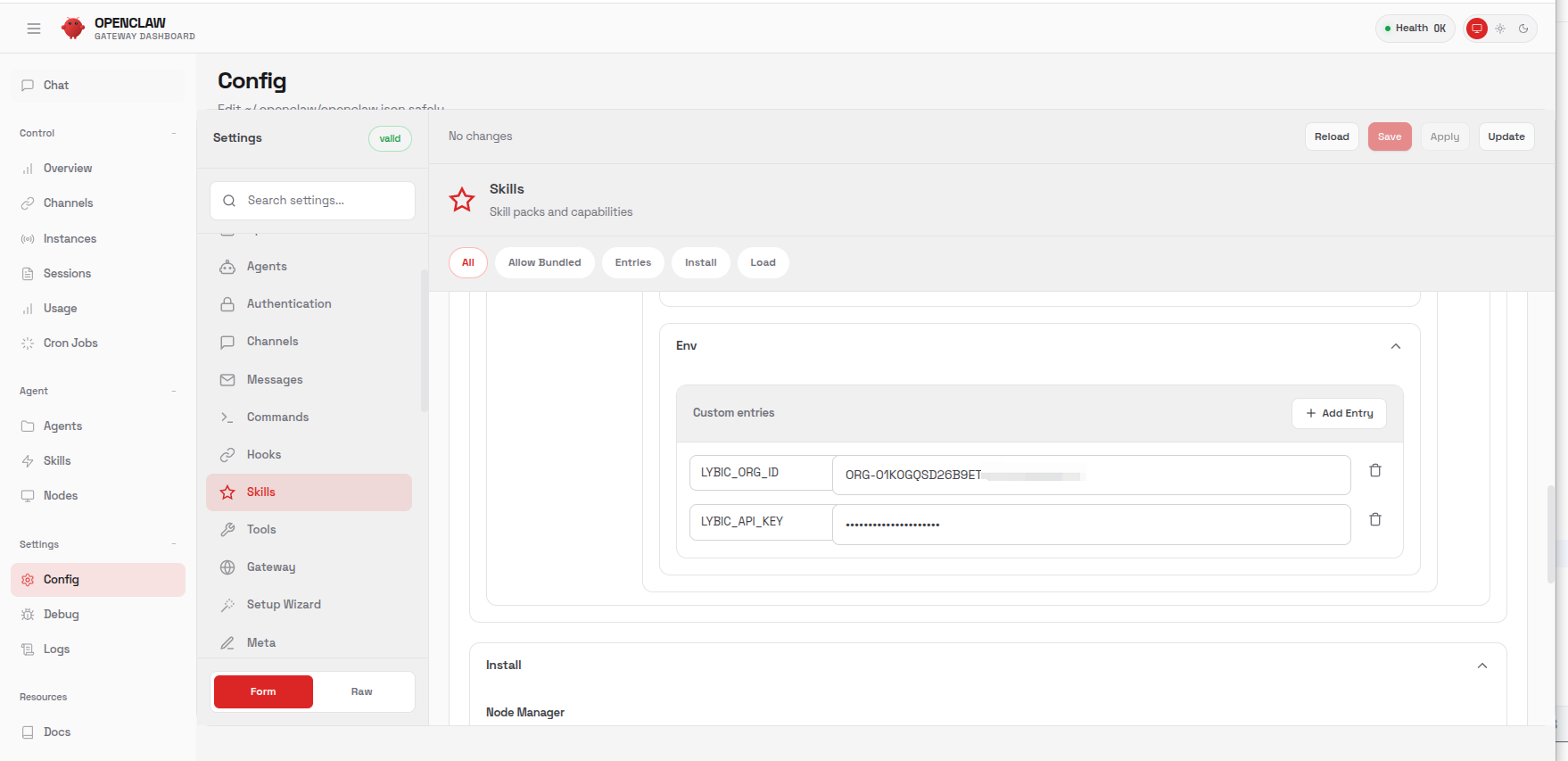
In the OpenClaw Gateway Dashboard (usually at http://127.0.0.1:18789), navigate to Settings → Config → Skills
Find the Lybic skill and enable it (if you can't find it, you can click Reload to try reloading).
Next, find Env, and set the configuration items LYBIC_API_KEY and LYBIC_ORG_ID to your Lybic API Key and Organization ID, respectively.
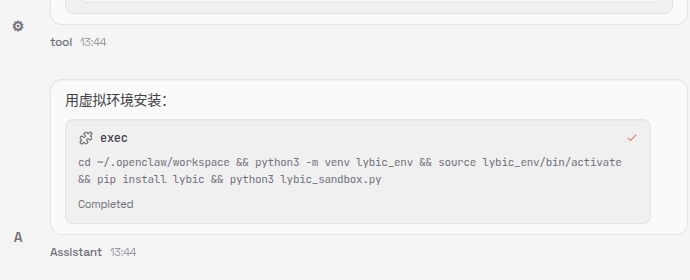
Conversation:
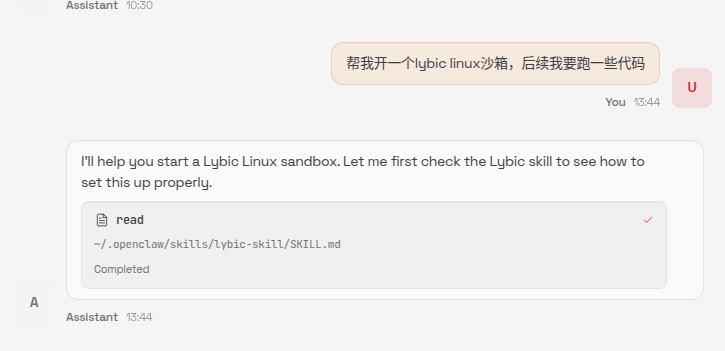 >
>
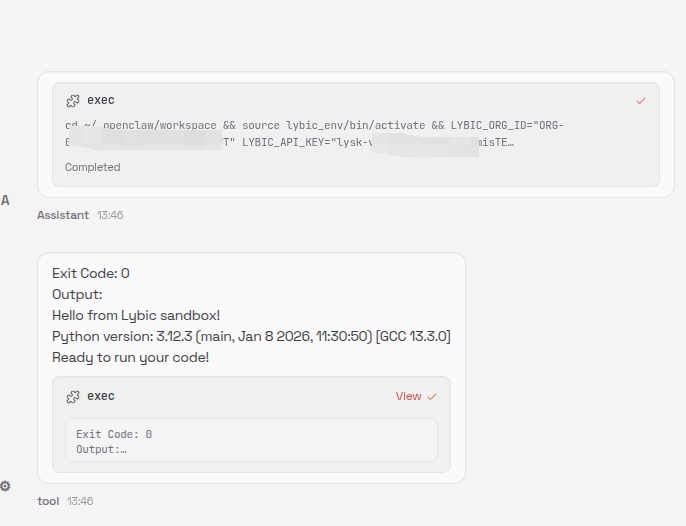
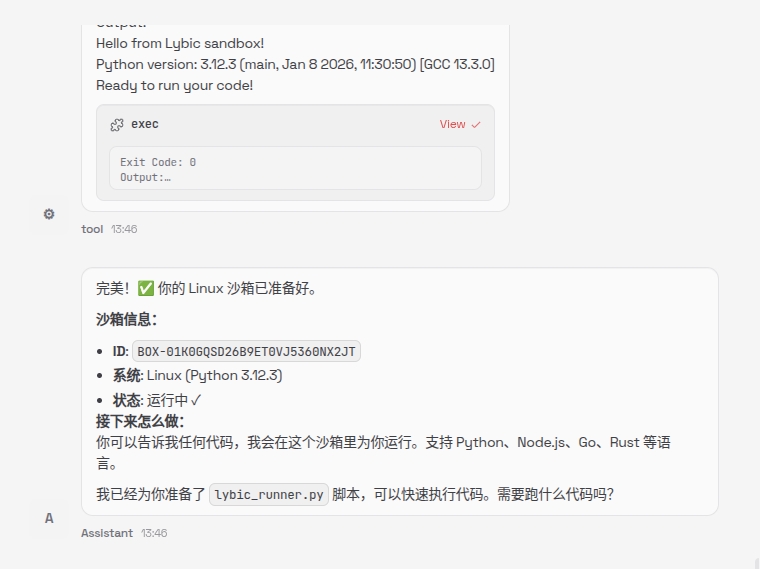
Experiencing OpenClaw in the Lybic Sandbox
We provide a Lybic sandbox for your agents, where you can run OpenClaw and experience its features.
You only need to prepare:
-
An OpenAI-compatible API (e.g., Azure OpenAI, OpenAI API) (including API Key, Endpoint, etc.)
-
A Lybic account (including API Key, Organization ID, etc.)
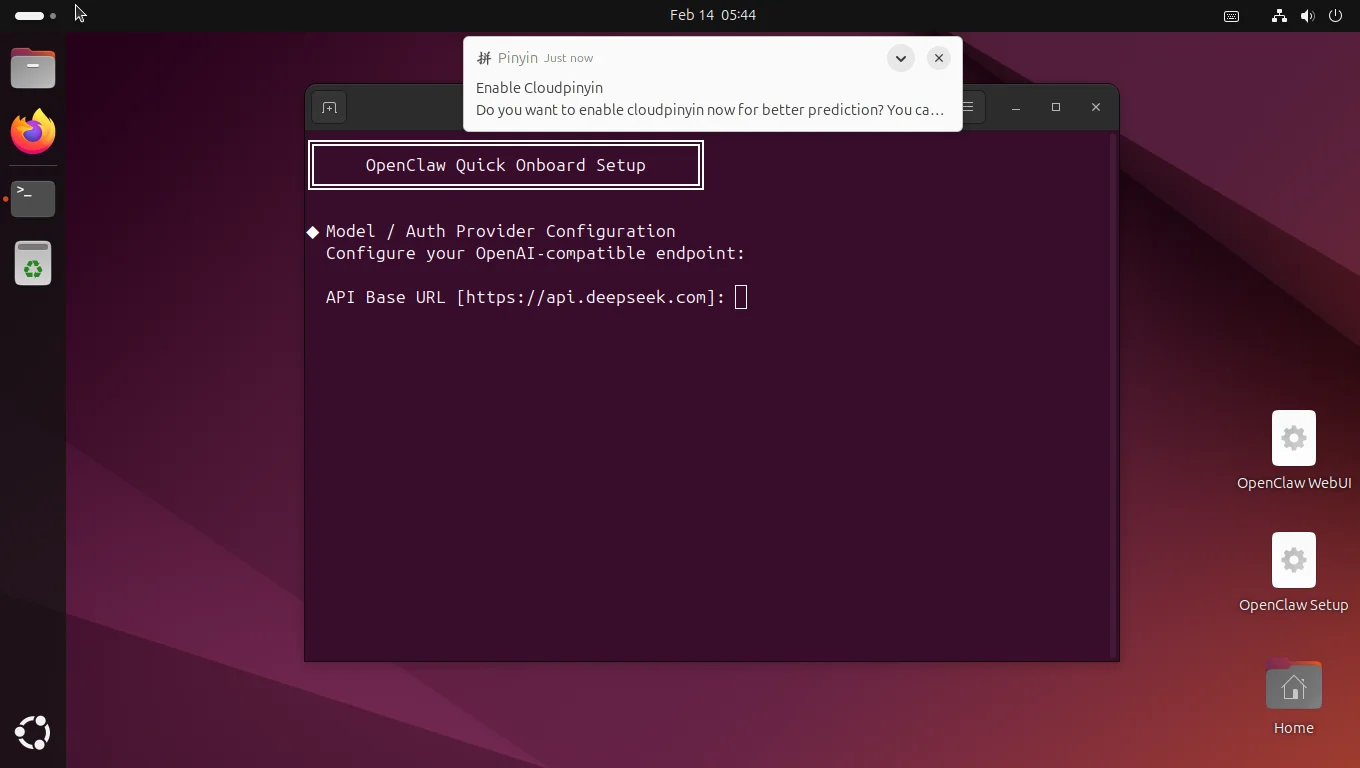
Create the OpenClaw sandbox in the console: (ShapeID: beijing-2c-4g-cpu-linux-openclaw)
After successful creation, enter the sandbox. You will see a console interface that will ask you to provide relevant information such as the OpenAI-compatible API. After entering the information, you can use OpenClaw in the sandbox.