Example of Using Lybic's Gradio Playground
This page demonstrates how to use Lybic in Gradio Playground
This document provides a step-by-step tutorial guiding you to build a graphical user interface (GUI) agent capable of understanding and executing complex tasks on a computer.
In this document, we will use a dual-model architecture to enable computer usage: one for high-level planning and another for grounding operations.
The high-level planning model uses state-of-the-art planners (such as OpenAPI O3 and Gemini 2.5 Pro), while the visual grounding operations use the doubao-UITARS model optimized for desktop tasks.
We will demonstrate how to combine LangChain, Gradio, Gemini, and doubao-uitars models to create an AI agent that can view the screen, think, and perform actions in a secure sandbox desktop environment provided by LybicSDK.
Of course, you can also replace the Gemini model with other multimodal models by simply referencing other model dependencies.
1. Initialize a Python Project and Install Dependencies
First, make sure you have Python 3.10 or above installed. Then, you can initialize a new Python project and install the required dependencies with the following commands:
mkdir gradio-playground
cd gradio-playground
python -m venv venv
source venv/bin/activate  # On Linux or macOS
venv\Scripts\activate  # On Windows
pip install -U pip
pip install -U python-dotenv langchain-core langchain-google-genai langchain-openai langchain gradio lybic
2. Set Environment Variables
Obtain your API key from Google-Ai-Studio and add it to a .env file in the project root directory, filling the environment variable GOOGLE_API_KEY:
GOOGLE_API_KEY=your_google_api_key_hereGet a Volcano Ark API key and add it to the .env file, filling the environment variable ARK_API_KEY, and configure the endpoint and grounding model:
ARK_API_KEY=your_api_key
ARK_MODEL_ENDPOINT=https://ark.cn-beijing.volces.com/api/v3
ARK_MODEL_NAME=doubao-1-5-ui-tars-250428
3. Write a Simple Playground to Let the AI Agent Chat with Users in Gradio
import os
import dotenv

dotenv.load_dotenv(os.path.join(os.path.dirname(__file__), ".env"))

from langchain_google_genai import ChatGoogleGenerativeAI
from langchain_core.prompts import PromptTemplate
from langchain.memory import ConversationBufferMemory
from langchain.chains import LLMChain

import gradio as gr

llm = ChatGoogleGenerativeAI(model="gemini-2.5-flash", temperature=0.7)

prompt = PromptTemplate(
    input_variables=["history", "user_input"],
    template="You are a helpful assistant. Below is the conversation history:\n{history}\n\nUser input: {user_input}\n\nAssistant response:"
)

memory = ConversationBufferMemory(memory_key="history")
chain = LLMChain(llm=llm, prompt=prompt, memory=memory)

def playground(user_input, history=None):
    if not user_input or user_input.strip() == "":
        return "It looks like you didn't provide any text for me to respond to! Please type or paste your input, and I'll be happy to help.", history or []
    try:
        response = chain.invoke({"user_input": user_input})["text"]
        new_history = history + [[user_input, response]] if history else [[user_input, response]]
        return "", new_history
    except Exception as e:
        return f"Error: {str(e)}", history

with gr.Blocks() as iface:
    gr.Markdown("# Playground with LangChain & Gradio")
    gr.Markdown("Interact with the Gemini model and maintain conversation history.")

    chatbot = gr.Chatbot()
    user_input = gr.Textbox(placeholder="Enter your question or prompt here...")
    submit_button = gr.Button("Submit")

    submit_button.click(
        fn=playground,
        inputs=[user_input, chatbot],
        outputs=[user_input, chatbot],
    )

    user_input.submit(
        fn=playground,
        inputs=[user_input, chatbot],
        outputs=[user_input, chatbot],
    )

if __name__ == "__main__":
    iface.launch()
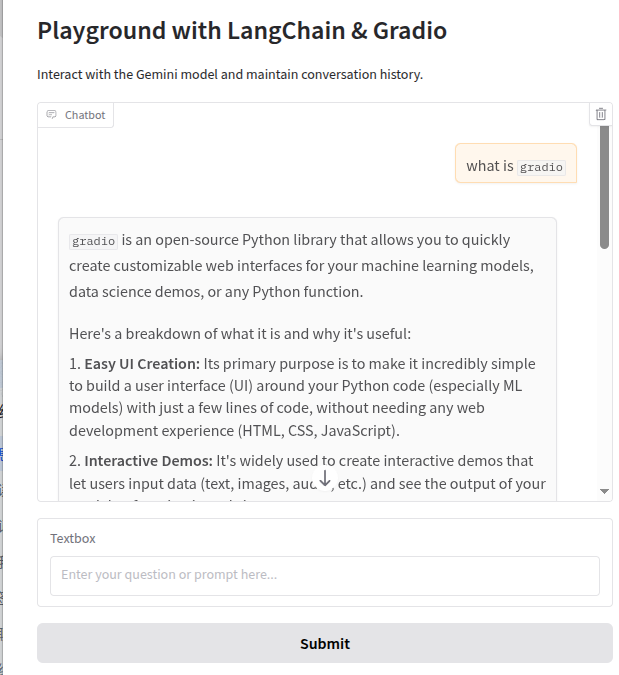
Save the above code as app.py and run the following command in the terminal to start the Gradio app:
python app.pyOpen your browser and visit http://127.0.0.1:7860, and you will see a simple Gradio interface where you can chat with the Gemini model.
4. Integrate lybic into Your Gradio Playground
In your script, import lybic and initialize it by calling LybicClient().
from lybic import LybicClient
async def main():
  # you should set env vars before initialize LybicClient
  async with LybicClient() as client:
    pass
Get a screenshot from the sandbox environment.
import asyncio
from lybic import LybicClient, Sandbox

async def main():
  async with LybicClient() as client:
      sandbox = Sandbox(client)
      url, image, b64_str = await sandbox.get_screenshot(sandbox_id="SBX-xxxx")
      print(f"Screenshot URL: {url}")
      image.show()

if __name__ == '__main__':
      asyncio.run(main())
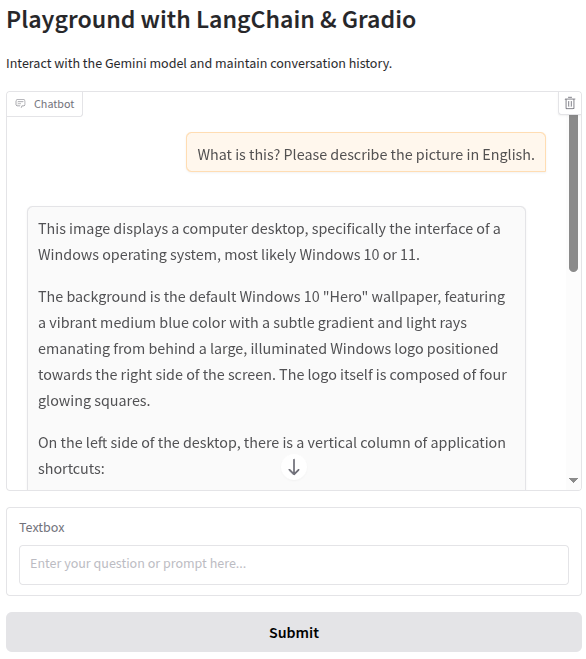
Modify message input: import the langchain_core.messages module and convert the previous single message into a structured message list to support multiple message types.
from langchain_core.messages import SystemMessage, AIMessage, HumanMessage
messages = [
    HumanMessage(
    content=[
        {
            "type": "text",
            "text": "What is this? Please describe the picture in English."
        },
        {
            "type": "image_url",
            "image_url": {
                "url": f"data:image/webp;base64,{ b64_str }"
            }
        }
    ]
),
]
4. Build the Dual-Agent Processing Loop
0. Introduction
This is the most important part of the module.
The architecture of this agent is actually very simple, and its execution flow is as follows:
- User enters a command, e.g., "Help me book a flight from Los Angeles to Atlanta around 3 pm next Tuesday, and book a hotel room near Atlanta airport on booking.com."
- The agent captures a screenshot from the sandbox environment using LybicSDK.
- Enter the loop: send the screenshot, user command, and system prompt (as well as global context and memory from the previous step) to the large language model (LLM) for high-level (or next-step) planning.
- The LLM generates a high-level plan, e.g., "I'm now on the desktop. I need to open the browser, go to booking.com, then select booking..."
- The high-level plan is stored as global context and memory and passed as an additional "overall plan" in each request.
- The plan is decomposed and executed, e.g., "Open browser -> Get browser desktop coordinates."
- Generate action commands.
- Pass the action commands to LybicSDK for execution.
- Return to the beginning of step 3 and loop until the LLM considers the task complete, then exit the loop.
We need to ensure that the non-loop parts of the process can run successfully and as expected before adding the loop at the end of the main process.
Okay, let's modify the code from the previous step.
1. View Screenshots
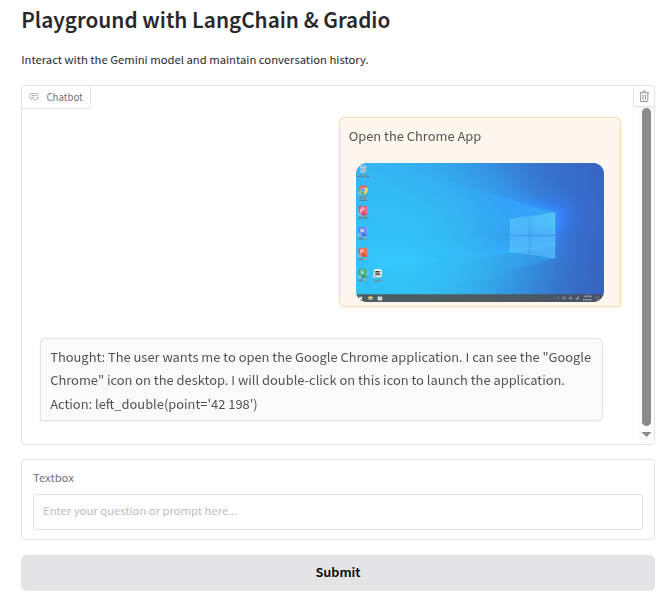
We can view the screenshot of each step in the chat box, which is very simple.
We just need to enable Gradio's Markdown text rendering and output the image message in Markdown format.
On the line chatbot = gr.Chatbot(), add render_markdown=True, like this: chatbot = gr.Chatbot(render_markdown=True)
Then, get the screenshot URL from the sandbox: screenshot_url, _, base64_str = await sandbox.get_screenshot('sandbox_id')
Add the screenshot URL to the Markdown text: user_message_for_history = f"{user_input}\n\n"
2. Set System Prompt for the Gemini Planning Model
You are a GUI Planner agent. You need to perform the next action to complete the task.

You have a access to a sandbox environment which are running Windows OS. You should ensure your action follows Windows common sense, such as double click to open a software on desktop, or use right click for context menu, and so on.

You should describe the next ONE action in English, such as:

- double click at "Google Chrome" icon
- right click at "This PC" icon
- click the close button at the top right corner
- press Alt+F4
- type "terms"
- wait 5 seconds

After that, an agent will execute the action you describe, and a new screenshot will be attached, you can use it to plan the next step.
3. Set System Prompt for the doubao-uitars Grounding Model
You are a GUI Grounding Agent, proficient in the operation of various commonly used software on Windows, Linux, and other operating systems.
Please complete the GUI Planner Agent's task based on its input, and screenshots.
The user(GUI Planner Agent) will input a current screenshot and an actio text.
You need to analyze and process `action` from GUI Planner Agent, and output only one Action at a time, please strictly follow the format below.

## Output Format

Thought: ...
Action: ...

## Action Space
click(point='<point>x1 y1</point>')
left_double(point='<point>x1 y1</point>')
right_single(point='<point>x1 y1</point>')
drag(start_point='<point>x1 y1</point>', end_point='<point>x2 y2</point>')
hotkey(key='ctrl c') # Split keys with a space and use lowercase. Also, do not use more than 3 keys in one hotkey action.
type(content='xxx') # Use escape characters \', \", and \n in content part to ensure we can parse the content in normal python string format. If you want to submit your input, use \n at the end of content
scroll(point='<point>x1 y1</point>', direction='down or up or right or left') # Show more information on the `direction` side.
wait() #Sleep for 5s and take a screenshot to check for any changes.
finished(content='xxx') # Use escape characters \', \", and \n in content part to ensure we can parse the content in normal python string format.

## Note
- Use English in `Thought` part.
- The x1,x2 and y1,y2 are the coordinates of the element.
- The resolution of the screenshot is 1280*720.
- Write a small plan and finally summarize your next action (with its target element) in one sentence in `Thought` part.
4. Add System Prompts to the Message List
Before the line full_message_list = history_messages + message, add system_message = SystemMessage(content=SYSTEM_PROMPT),
and change full_message_list = history_messages + message to full_message_list = [system_message] + history_messages + message.
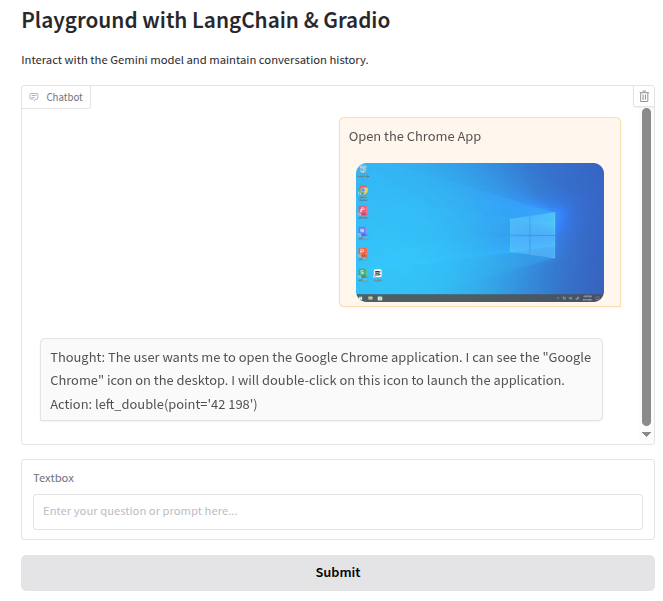
If everything works, when you test the input and output like this, the LLM will not output the correct coordinate format:
Thought: The user wants to open the Google Chrome application. I can see the "Google Chrome" icon on the desktop. I need to double-click this icon to launch the application. Action: left_double(point='')
This is because Gradio's default behavior is to sanitize HTML to prevent potential security issues, but this may interfere when you want to render specific HTML tags.
We just need to adjust the gr.Chatbot component to disable HTML sanitization.
On the line chatbot = gr.Chatbot(render_markdown=True), add sanitize_html=False to the gr.Chatbot component, like this: chatbot = gr.Chatbot(render_markdown=True, sanitize_html=False)
Okay, let's test if the system prompt works.
5. Introduce the uitars Model
Ui-tars is a model that can recognize screen coordinates and user interactions. But it is not yet available in LangChain.
However, the good news is: the Ui-tars request interface is compatible with the OpenAI API specification, so we can develop a Ui-tars client ourselves.
from langchain_openai import ChatOpenAI
llm_uitars = ChatOpenAI(
  base_url=os.getenv("ARK_MODEL_ENDPOINT"),
  api_key=os.getenv("ARK_API_KEY"),
  model=os.getenv("ARK_MODEL_NAME"),
)
6. Use Lybic API to Parse LLM Output and Execute Actions
Lybic provides a simple API to parse the output of large language models (LLMs) and execute corresponding actions via ComputerUse().parse_llm_output().
Read this documentation for more information.
To test the execution result, we added a new feature: view the execution result. This feature will pop up an image for us to view after execution is complete.
_, img, _ = await sandbox.get_screenshot(sandbox_id);img.show()
Okay, let's test the execution result.
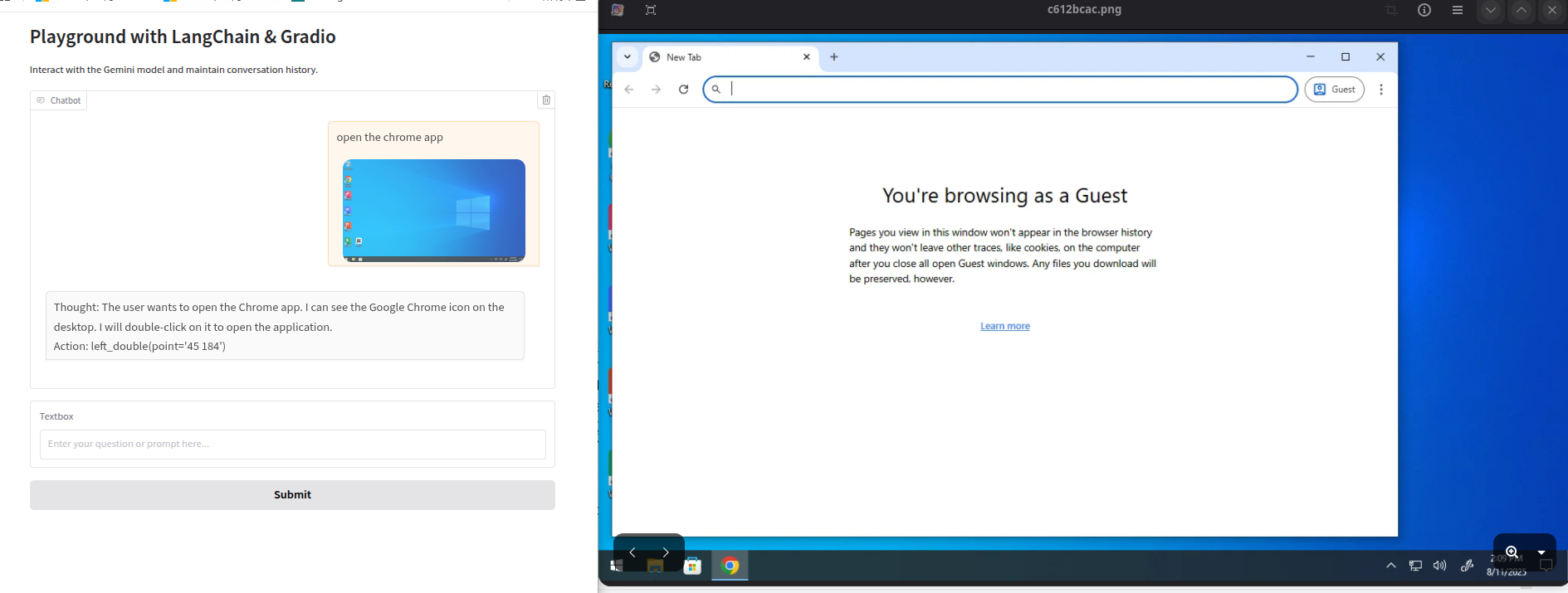
The execution result is correct.
7. Introduce the Event-Problem Solving Loop
In this step, we will introduce an event-problem solving loop. This loop is used to solve problems that the large language model (LLM) cannot solve directly.
The LLM needs to break down large tasks into multiple small tasks, execute each small task, and then "determine the result or plan the next step". This "determine the result or plan the next step" is the entry point into the loop.
To enable the LLM to process tasks in a loop like an agent, we need to modify the playground function so that it can continuously execute the "observe-think-act" process until the task is complete.
This requires the following modifications:
- Introduce the main loop: In the playground function, we will add a while loop to simulate the agent's continuous work.
- State tracking: Each step in the loop needs to get the latest screenshot as the agent's "observation" input.
- Termination condition: The agent needs to know when the task is complete. We will rely on the finished() action output by the LLM as the loop exit signal.
- Real-time feedback: To let users see each step executed by the agent, we will use Gradio to update the chat history at each step in the loop.
- Important Use
yieldto make the function return asynchronously. - Important Add a
while Trueloop afterhistory.append([user_message_for_history, "Thinking..."]). - Update the history with the LLM's thought process:
history[-1][1] = response - Check the termination condition:
if isinstance(action, dto.FinishedAction):
8. Complete Code
import asyncio
import os
import dotenv
import re
dotenv.load_dotenv(os.path.join(os.path.dirname(__file__), ".env"))
from langchain_google_genai import ChatGoogleGenerativeAI
from langchain_core.messages import SystemMessage, HumanMessage
from langchain.memory import ConversationBufferMemory
from lybic import LybicClient, Sandbox, ComputerUse, dto
import gradio as gr
PLANNER_SYSTEM_PROMPT = """You are a GUI Planner agent. You need to perform the next action to complete the task.
You have a access to a sandbox environment which are running Windows OS. You should ensure your action follows Windows common sense, such as double click to open a software on desktop, or use right click for context menu, and so on.
You should describe the next ONE action in English, such as:
- double click at "Google Chrome" icon
- right click at "This PC" icon
- click the close button at the top right corner
- press Alt+F4
- type "terms"
- wait 5 seconds
After that, an agent will execute the action you describe, and a new screenshot will be attached, you can use it to plan the next step.
"""
GROUNDNING_SYSTEM_PROMPT = """You are a GUI Grounding Agent, proficient in the operation of various commonly used software on Windows, Linux, and other operating systems.
Please complete the GUI Planner Agent's task based on its input, and screenshots.
The user(GUI Planner Agent) will input a current screenshot and an actio text.
You need to analyze and process `action` from GUI Planner Agent, and output only one Action at a time, please strictly follow the format below.
## Output Format
Thought: ...
Action: ...
## Action Space
click(point='<point>x1 y1</point>')
left_double(point='<point>x1 y1</point>')
right_single(point='<point>x1 y1</point>')
drag(start_point='<point>x1 y1</point>', end_point='<point>x2 y2</point>')
hotkey(key='ctrl c') # Split keys with a space and use lowercase. Also, do not use more than 3 keys in one hotkey action.
type(content='xxx') # Use escape characters \', \", and \n in content part to ensure we can parse the content in normal python string format. If you want to submit your input, use \n at the end of content
scroll(point='<point>x1 y1</point>', direction='down or up or right or left') # Show more information on the `direction` side.
wait() #Sleep for 5s and take a screenshot to check for any changes.
finished(content='xxx') # Use escape characters \', \", and \n in content part to ensure we can parse the content in normal python string format.
## Note
- Use English in `Thought` part.
- The x1,x2 and y1,y2 are the coordinates of the element.
- The resolution of the screenshot is 1280*720.
- Write a small plan and finally summarize your next action (with its target element) in one sentence in `Thought` part.
"""
sandbox_id = os.getenv("SANDBOX")
from langchain_openai import ChatOpenAI
llm = ChatGoogleGenerativeAI(model="gemini-2.5-flash", temperature=0.7)
memory = ConversationBufferMemory(memory_key="history")
llm_uitars = ChatOpenAI(
base_url=os.getenv("ARK_MODEL_ENDPOINT"),
api_key=os.getenv("ARK_API_KEY"),
model=os.getenv("ARK_MODEL_NAME"),
)
async def playground(user_input, history=None):
if not user_input or user_input.strip() == "":
yield (
"It looks like you didn't provide any text for me to respond to! Please type or paste your input, and I'll be happy to help.",
history or [],
)
return
if history is None:
history = []
try:
async with LybicClient() as client:
sandbox = Sandbox(client)
computer_use = ComputerUse(client)
# Add the initial user input to the history
screenshot_url, _, _ = await sandbox.get_screenshot(sandbox_id)
user_message_for_history = f'{user_input}\n\n'
history.append([user_message_for_history, "Thinking..."])
yield "", history
while True:
# 1. Observe: Get the current screenshot
screenshot_url, _, base64_str = await sandbox.get_screenshot(sandbox_id)
# 2. Think: Prepare messages for the LLM
planner_message = [
HumanMessage(
content=[
{"type": "text", "text": f"This is user's instruction: {user_input}"},
{
"type": "image_url",
"image_url": {"url": f"data:image/webp;base64,{base64_str}"},
},
]
),
]
system_message = SystemMessage(content=PLANNER_SYSTEM_PROMPT)
history_messages = memory.chat_memory.messages
full_message_list = [system_message] + history_messages + planner_message
# Get LLM response
response_message = await llm.ainvoke(full_message_list)
response = response_message.text()
print("Planner output:", response)
print("---------")
# Update history with the LLM's thought process
match = re.search(r'Action:\s*(.*)', response)
if match:
response = match.group(1).strip()
else:
yield f"Error: No action found", history
history[-1][1] = response # Update the "Thinking..." message
yield "", history
# 3. Grounding
grounding_message = [
HumanMessage(
content=[
{"type": "text", "text": response},
{"type": "text",
"text": f"This is user's screenshot,and the resolution of the screenshot is 1280*720:"},
{
"type": "image_url",
"image_url": {"url": f"data:image/webp;base64,{base64_str}"},
}
]
)
]
system_message = SystemMessage(content=GROUNDNING_SYSTEM_PROMPT)
full_message_list = [system_message] + grounding_message
response_message = await llm_uitars.ainvoke(full_message_list)
response = response_message.text()
print("Grounding output:", response)
# 4. Act: Parse and execute the action
action_dto = await computer_use.parse_model_output(
dto.ComputerUseParseRequestDto(model="ui-tars",
textContent=response,
))
action = action_dto.actions[0]
await computer_use.execute_computer_use_action(sandbox_id, dto.ComputerUseActionDto(action=action))
# Memory: Store the conversation
memory.chat_memory.add_message(planner_message[0])
memory.chat_memory.add_ai_message(response)
# Check for termination condition
if isinstance(action, dto.FinishedAction):
final_screenshot_url, _, _ = await sandbox.get_screenshot(sandbox_id)
history.append([None, f"Task finished. Final state:\n\n"])
yield "", history
break
await asyncio.sleep(2)
# Prepare for the next loop iteration
history.append([f"Action executed: `{ action.model_dump_json() }`\n\nTaking new screenshot...", "Thinking..."])
yield "", history
except Exception as e:
import traceback
yield f"Error: {str(e)}\n{traceback.format_exc()}", history
with gr.Blocks() as iface:
gr.Markdown("# Playground with LangChain & Gradio")
gr.Markdown("Interact with the Gemini model and maintain conversation history.")
chatbot = gr.Chatbot(render_markdown=True, sanitize_html=False)
user_input = gr.Textbox(placeholder="Enter your task for the agent...")
submit_button = gr.Button("Run Agent")
# Use a generator for the click event
submit_button.click(
fn=playground,
inputs=[user_input, chatbot],
outputs=[user_input, chatbot],
)
user_input.submit(
fn=playground,
inputs=[user_input, chatbot],
outputs=[user_input, chatbot],
)
if __name__ == "__main__":
iface.launch()Result
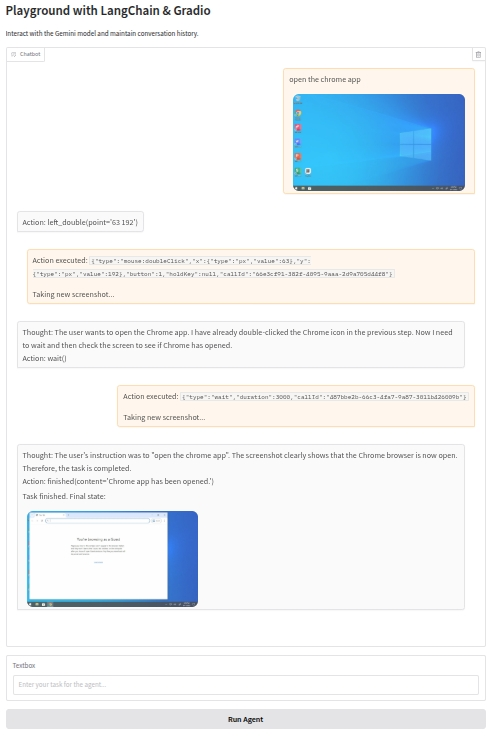
At this point, you have successfully built a graphical user interface (GUI) agent capable of understanding and executing complex tasks on a computer. You can further extend and optimize this agent as needed, such as adding more error handling, improving the user interface, or integrating other models and tools to enhance its functionality and performance. Wish you success on your journey to building intelligent agents!