Quick Start Guide
Welcome to Lybic --- a cloud-based sandbox infrastructure platform designed for GUI (Graphical User Interface) agents. Lybic provides isolated cloud computers and cloud mobile devices where agents can interact with applications, websites, and any GUI just like a human would. When building a GUI Agent, you no longer need to manage your own instances, images, or execution environments. Lybic offers a fully managed, reliable, and observable GUI runtime component.
Follow the steps below to complete registration and initial configuration.
1. Register and Sign In
Visit the registration page on the Lybic website and create a new account using your email. After completing registration, log in and create your organization (Organization) to access the console.
Tip: Use your primary corporate email to ensure smooth verification and notification delivery.

2. Complete Verification and Claim Free Trial Credits
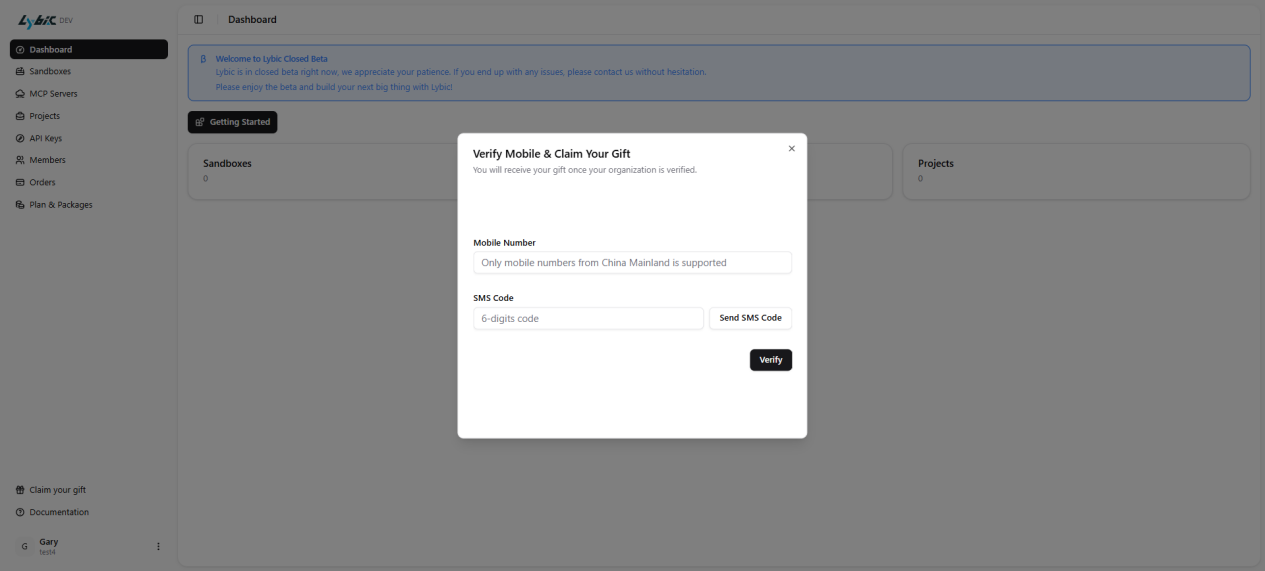
After signing in, navigate to "Claim your gift" on the dashboard to verify your phone number and claim your initial free trial credits.
If you are using Lybic on behalf of an organization, we recommend providing your name, company/organization information, and user role. Uploading your business license or organization documents will grant you an additional enterprise trial package once approved.
3. Using the Console
(1)Resource Overview
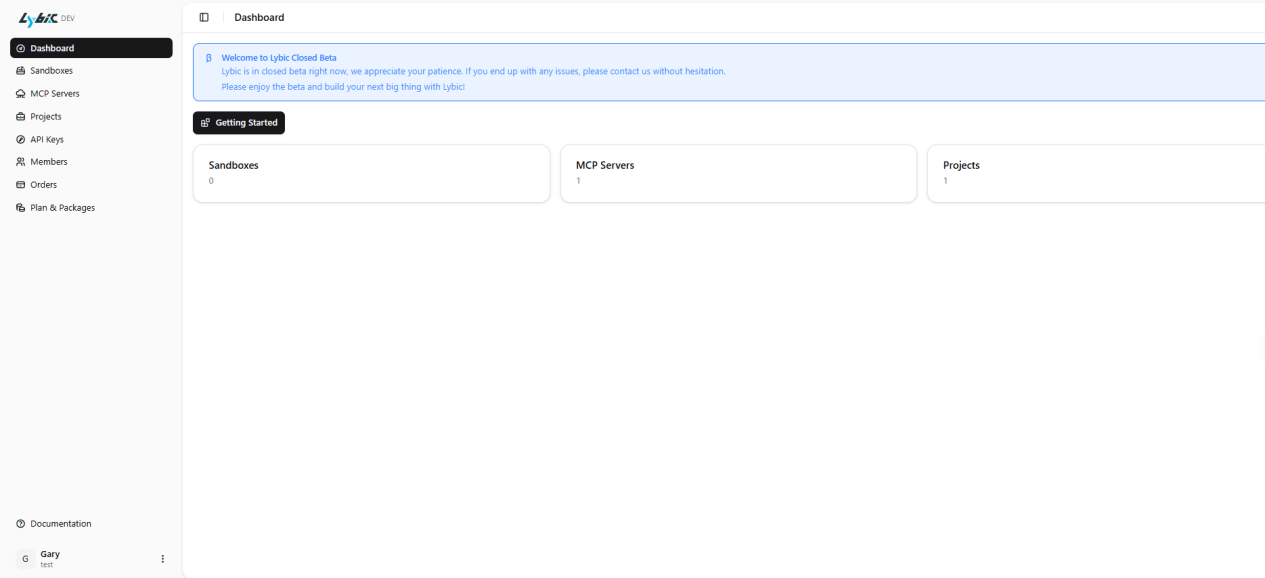
In the Dashboard, you can view your current resource usage, including:
- Sandboxes
- MCP Servers
- Projects
(2)Sandbox Creation & API Management
Create a Sandbox
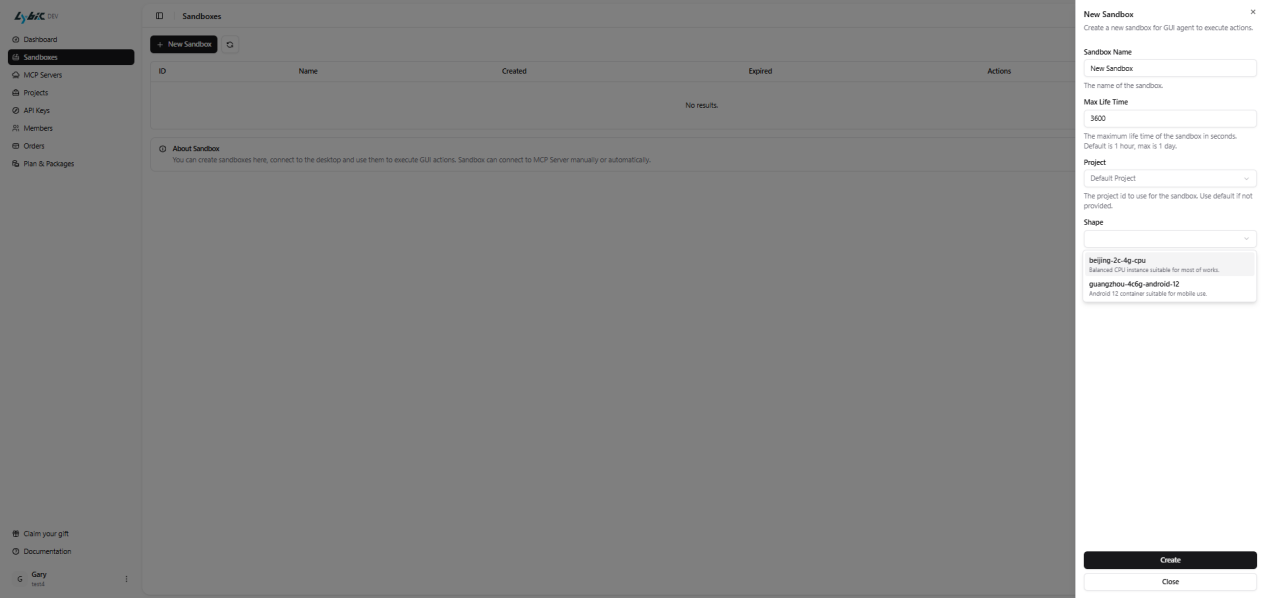
Go to the Sandboxes module to create a new cloud sandbox. You can configure:
- Sandbox name
- Runtime duration
- Associated Project
- Sandbox type (Windows cloud computer / Android cloud phone)
Sandbox type:
- beijing-2c-4g-cpu: Windows cloud computer
- guangzhou-4c6g-android-12: Android cloud phone
Manage API Keys
In API Keys, you can create and manage your API endpoints and keys.
Important: Keep your API keys secure to prevent unauthorized resource usage.
(3)Organization Member Management
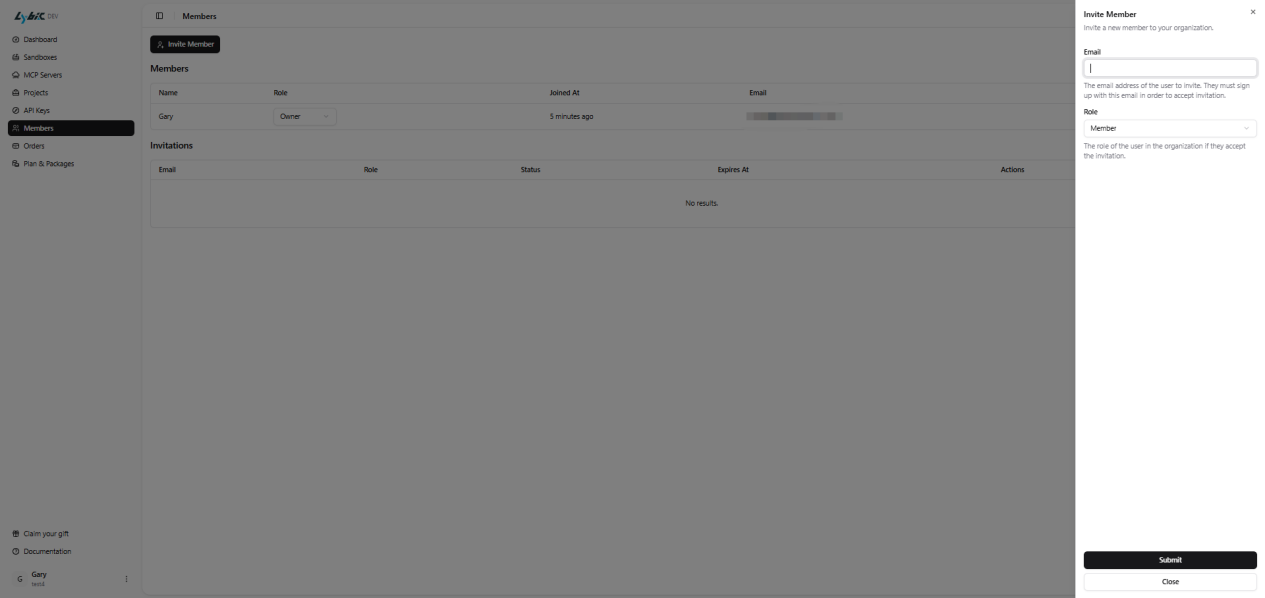
In the Members module, you can invite teammates to join your organization and share resources.
- Click Invite Member and enter the user's email
- The recipient must register an account before accepting the invitation
- Owner has the highest privileges and may modify roles or remove members
(4)Account Billing and Plans
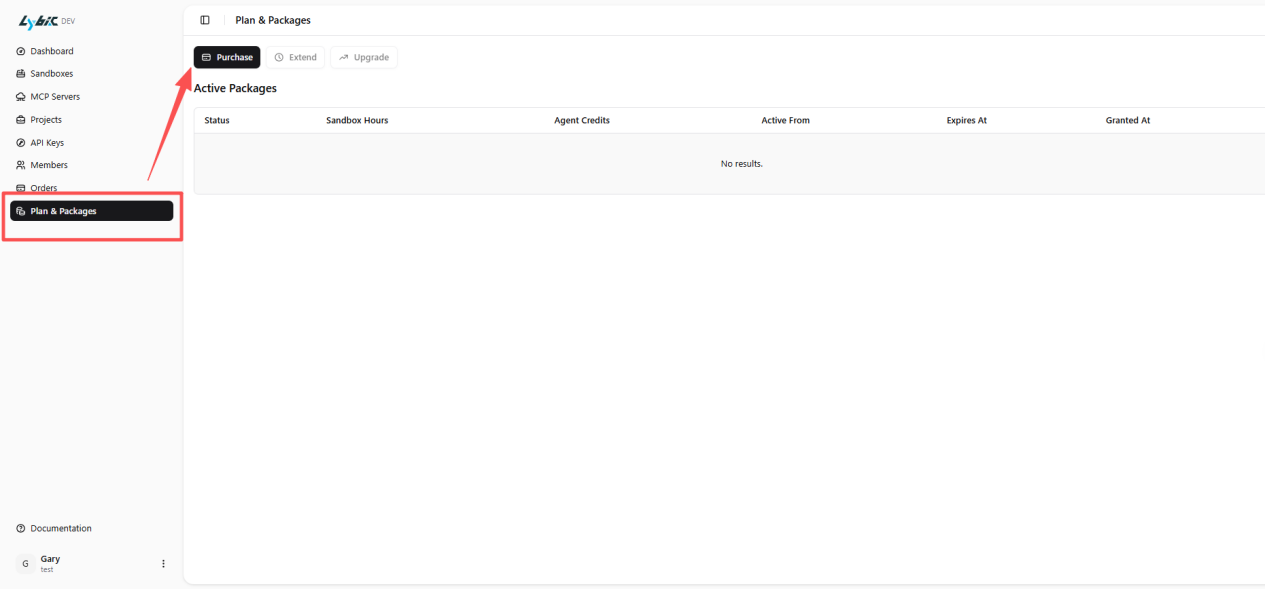
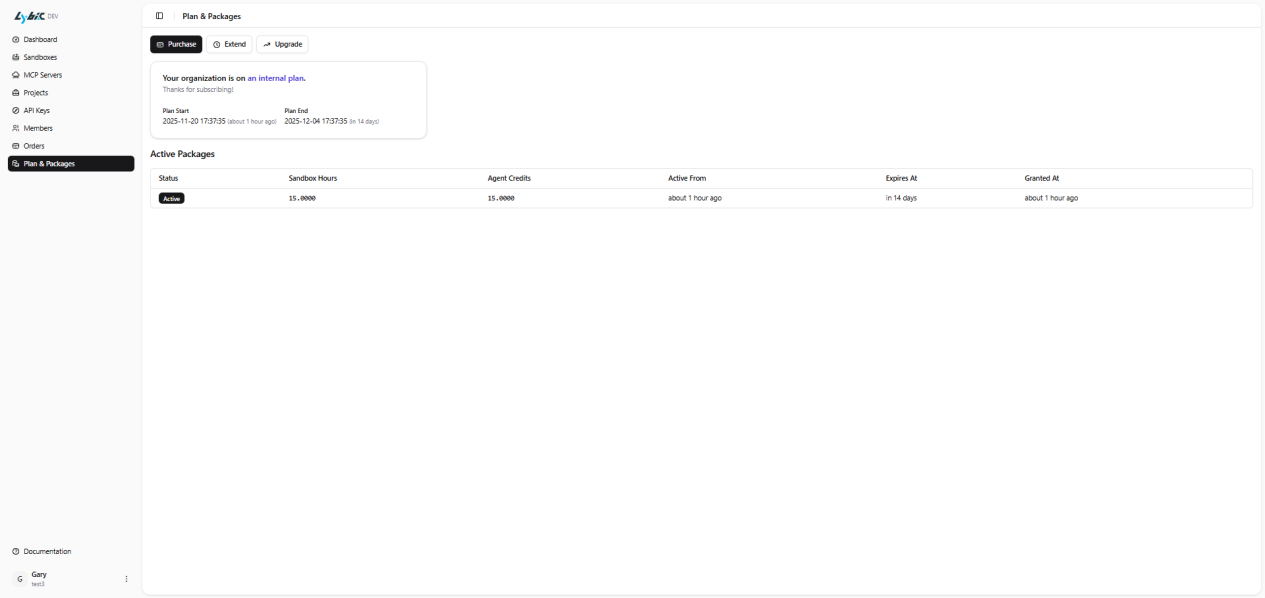
You may begin by using your free trial credits. When additional resources are needed, navigate to Plan & Packages to upgrade to a paid plan. Supported payment methods are displayed on the page. All order history can be viewed in the Orders section.
What to do next?
- Explore the Lybic API Documentation to learn how to programmatically manage sandboxes and MCP servers.
- Try our playground to get hands-on experience with Lybic's features.
- Check out the SDK Guides for integrating Lybic into